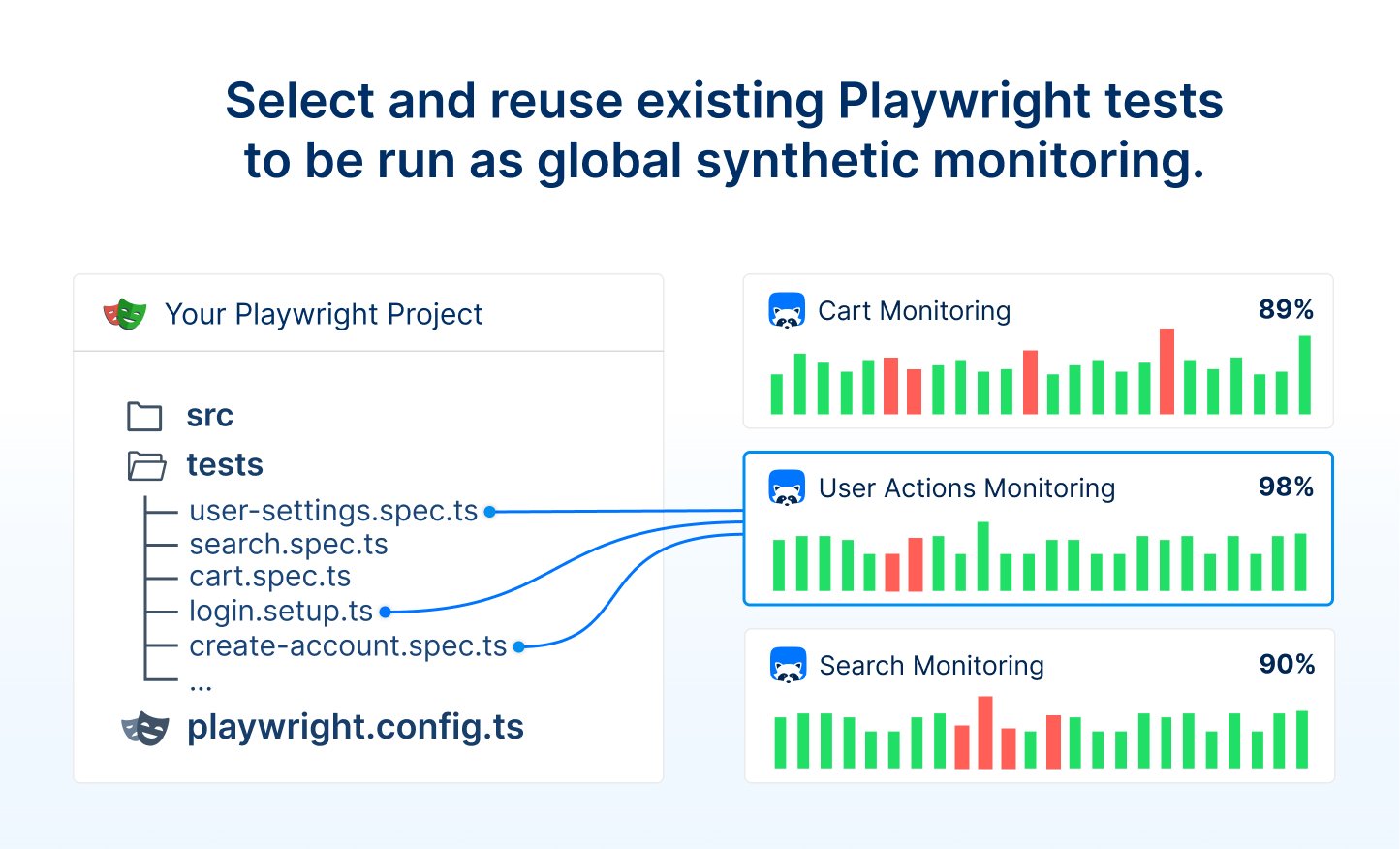
Playwright Check Suites enable you to reuse your existing Playwright end-to-end tests for global synthetic monitoring.
Playwright Check Suites should be a subset of the entire Playwright end-to-end test suite.
Run your entire Playwright end-to-end test suite, pick specific tests or group multiple tests together to run them as global synthetic monitoring and get alerted when your Playwright-based monitors fail.

How long should an ideal Playwright Check Suite run?

While a Playwright Check Suite can reflect and run your entire existing end-to-end test suite, it’s best to split your Playwright test suite into multiple Playwright Check Suites to meet your alerting and monitoring needs. Playwright tests are run to validate a pre-production environment and prepare a production release. Full end-to-end test executions that last over fifteen minutes are common for this purpose. While running all the tests during CI/CD makes sense for testing, it is not ideal for monitoring. The longer your Playwright Check Suite runs, the longer you wait for a failure alert. To ensure a short Mean Time to Detect (MTTD), your Playwright Check Suites should execute and fail quickly.
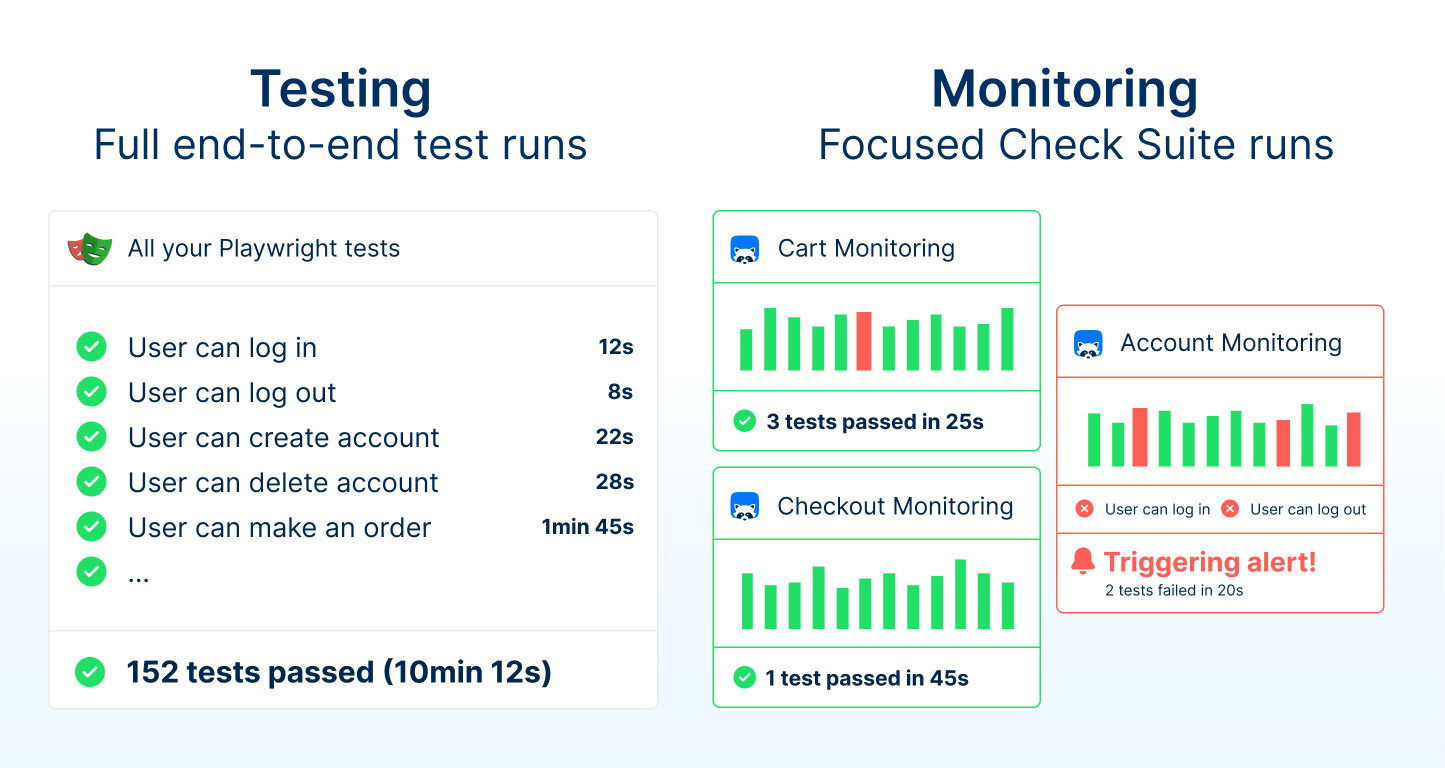
Playwright Check Suites should be a subset of the entire Playwright end-to-end test suite.
Split your Playwright tests into focus areas or groups of urgency to ensure the best monitoring frequency and alerting mechanisms. The acceptable test duration depends on your application and how quickly you want to be alerted in case of an issue. If your service level agreements (SLAs) require a fast reaction time, we recommend keeping your Playwright Check Suite execution times as short as possible.
Remember: 99.9% uptime means about 1 minute and 26 seconds of downtime each day. To ensure high uptime, your Playwright Check Suites should run much faster than the maximum downtime per day. To guarantee a high level of uptime, your Playwright Check Suites should run significantly faster than 1 minute and 26 seconds.

How to include Playwright tests in your Playwright Check Suite

The quickest way to reuse your existing Playwright end-to-end tests as Playwright Check Suites is to specify your Playwright config path and a single Playwright Check Suite in your checkly.config.ts.
Each Playwright Check Suite requires a name and logicalId. Without providing additional Playwright configuration (pwProjects or pwTags), the Playwright Check Suite will run all tests defined in the playwright.config.ts. It will include the tests that would also be run by npx playwright test. Without providing additional Checkly configuration (frequency or locations), the Playwright Check Suite will run every 10 minutes in the three default locations (North Carolina, Tokyo, London).
While it’s possible to run all your Playwright tests as long as your suite runs in under 15 minutes, we recommend to group your tests into multiple Playwright Check Suites with different monitoring configuration.This approach leads to faster Mean Time to Detect (MTTD), overall transparency and more granular monitoring information.

How to Organize your tests in Playwright Check Suites

Use the pwProjects and pwTags properties to group and organize your Playwright Check Suites. Select existing Playwright tests and run them in a Playwright Check Suite by relying on Playwright projects. Use the pwProjects option to choose Playwright projects defined in the playwright.config.ts by name.
Playwright projects are most commonly used to configure different browser settings, but they can be used to configure different environments, authentication states, or any other Playwright configuration.Using pwProjects creates a custom testCommand that includes the exact same npx playwright test --project configuration.Find more Playwright project examples below.

Group your Tests using Playwright tags

Select existing Playwright tests and run them in a Playwright Check Suite by relying on Playwright test annotations and tags.
Playwright Check Suites let you filter existing tests using pwTags. However, we recommend to always start with a separated Playwright project and reuse it via pwProjects in your checkly.config.ts.This approach improves the maintainability and separates the Playwright test configuration (playwright.config.ts) from the Checkly monitoring configuration (checkly.config.ts).Using pwTags creates a custom testCommand that includes the exact same npx playwright test --grep @tag configuration for your check suite to run.

Recommendations and Examples

Synthetic monitoring with Playwright Check Suites is most effective when you organize your Playwright tests to match your monitoring needs. The best setup depends on your application and how quickly you want to receive alerts.
The following examples are also available on GitHub if you want to see them in action.

Group different environments

If you want to use your Playwright tests to monitor different environments (e.g., staging, production, ... or /de, /fr, ..., ), create Playwright projects for each environment target.
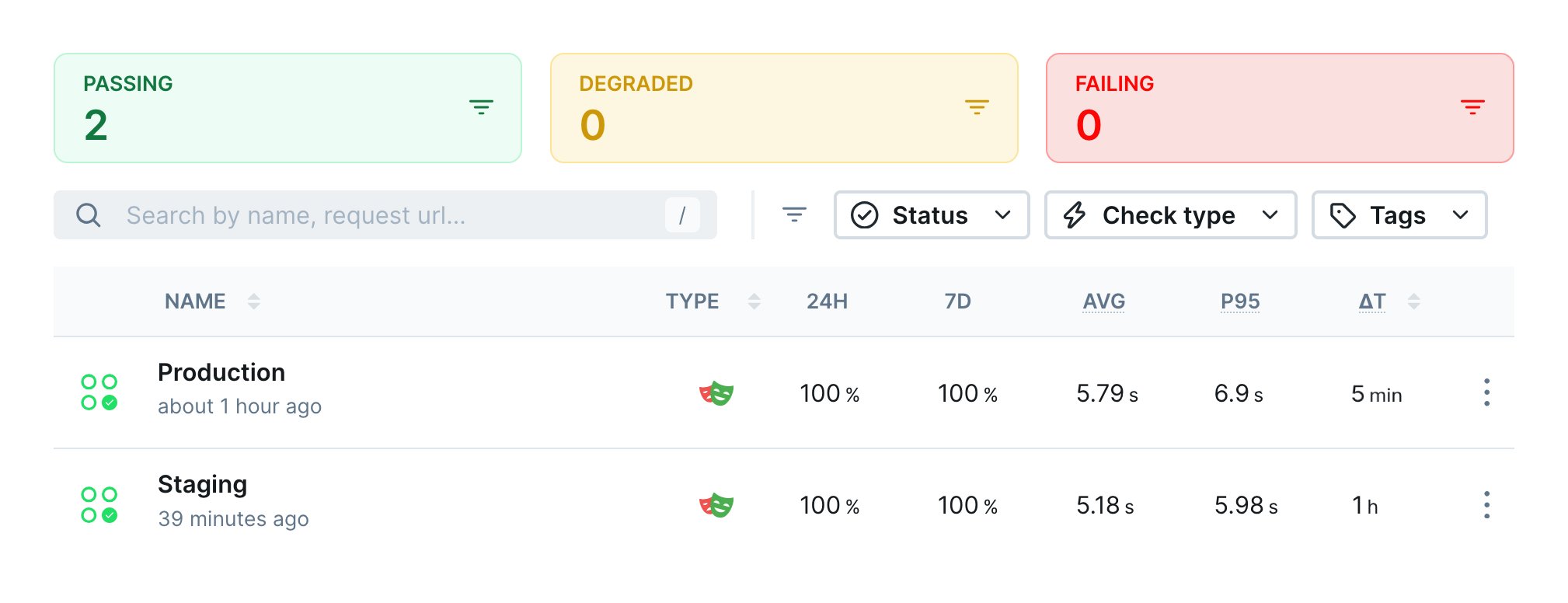
Playwright Check Suites grouped by environment
Specify a different baseURL options for each project.
playwright.config.ts
baseURL is one example of using advanced Playwright configuration.The Playwright test runner can always be configured at a global, project, or test level. If needed, set up your project:
  • to increase timeouts for a slow environment (e.g. timeout or expect.timeout)
  • to run more retries for an unstable environment (e.g. retries)
  • to use different authentication for each environment (e.g. storageState)
And configure different monitoring configuration for each Playwright project in your Playwright Check Suite.
checkly.config.ts

Group specific application areas

If you want to use your Playwright tests to monitor different application areas (e.g. customer functionality, search, etc.), create Playwright projects and select files via Playwright annotations and tags.
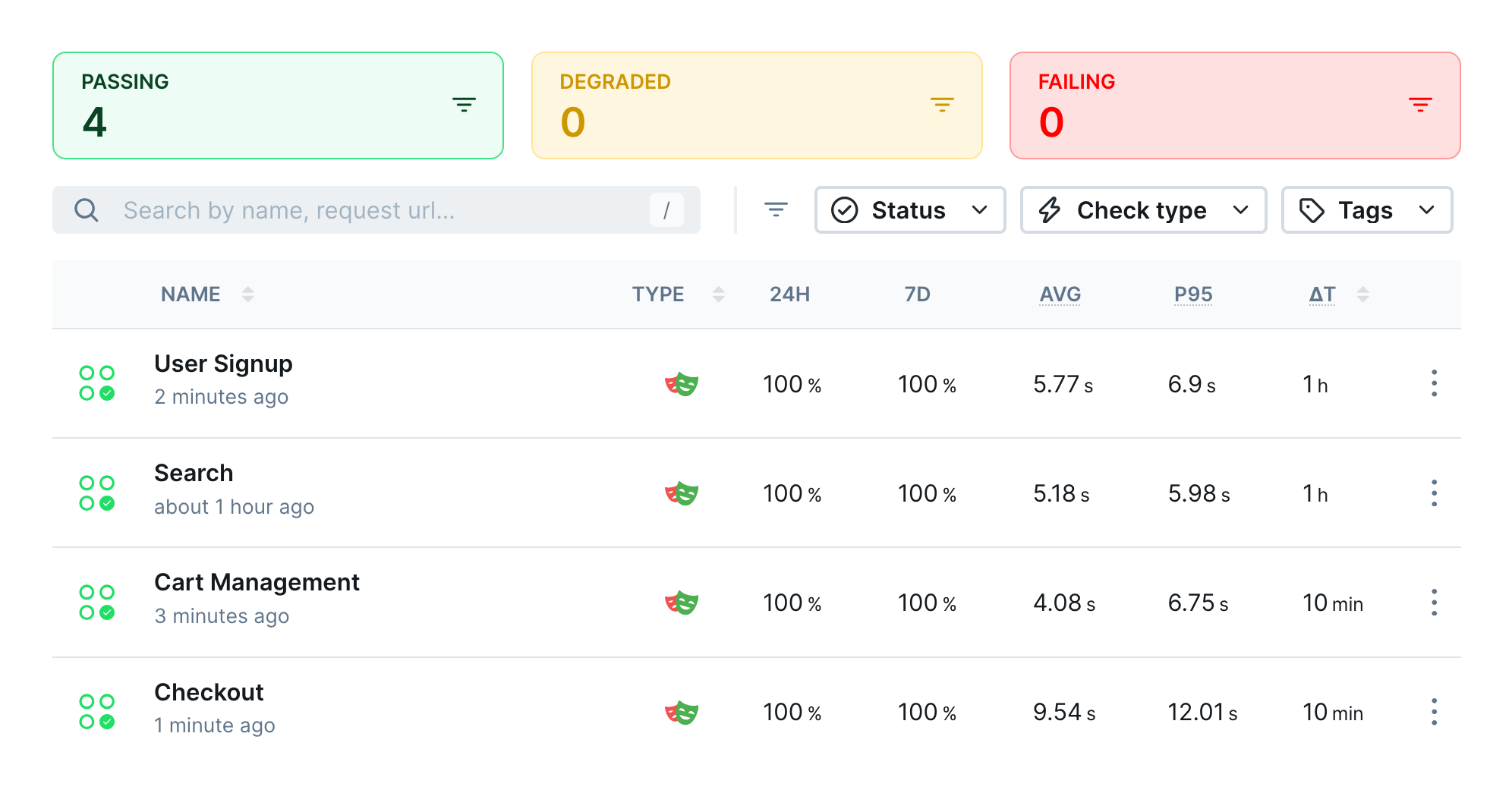
Playwright Check Suites monitoring different application areas.
Select and group tests via Playwright projects.
playwright.config.ts
And configure different monitoring configuration for each Playwright project in your Playwright Check Suite.
checkly.config.ts

Group tests depending on urgency or execution time

If you want to use your Playwright tests to monitor both essential user flows, like login at a high frequency with critical alerts, and less critical ones, like profile updates at a lower frequency, create Playwright projects and select tests via Playwright annotations and tags.
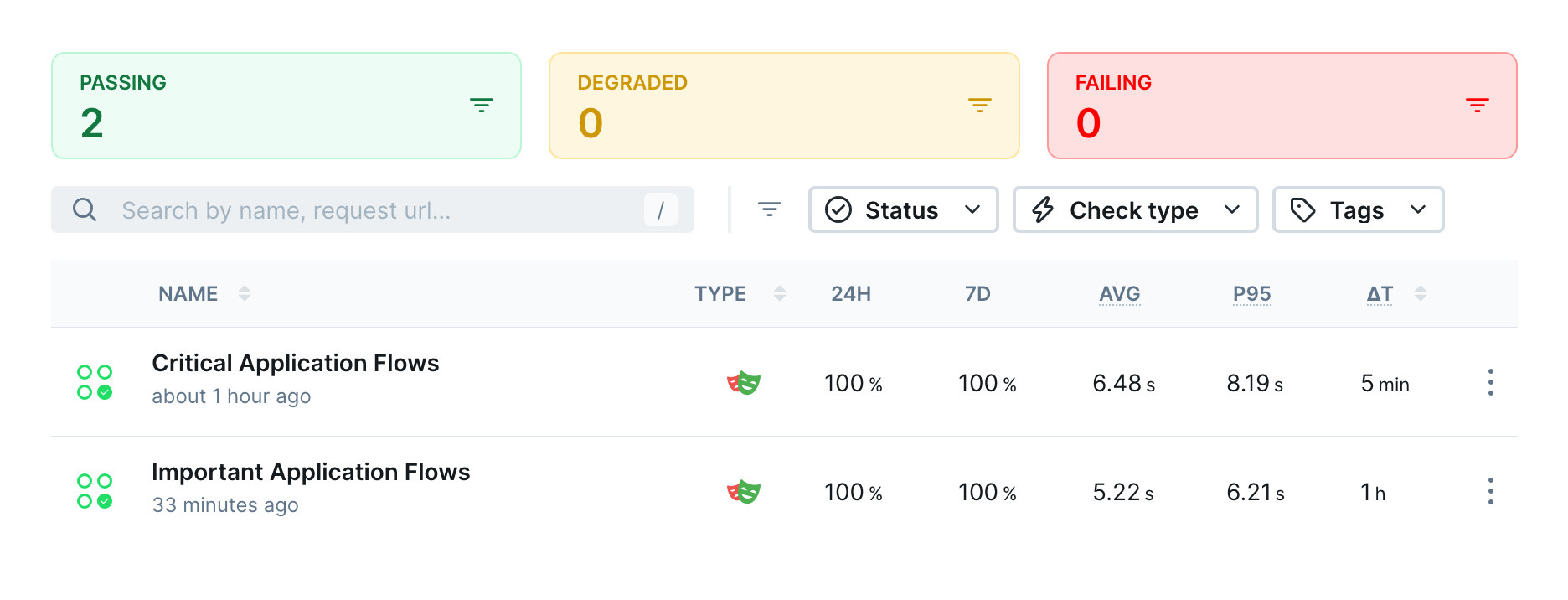
Two Playwright Check Suites grouped by urgency
Select and group tests via Playwright projects.
playwright.config.ts
And configure different monitoring configuration for each Playwright project in your Playwright Check Suite.
checkly.config.ts
Critical Playwright Check Suites running on high intervals should only include fast test cases to guarantee a short Mean Time to Detect (MTTD).If a Check Suite run exceeds the specified interval frequency, subsequent runs will be skipped while it is running.

Group tests to reuse authentication states

If your existing Playwright tests require authentication and a login step, use Playwright project dependencies and storage state to log in once and reuse the browser session information. Create a Playwright test that performs your login actions and calls context().storageState().
login.setup.ts
Configure two new Playwright projects. The first one performs the login actions to persist the browser state, while the other one imports the browser state to avoid the login steps.
playwright.config.ts
This Playwright setup will always run the login-setup project before running logged-in-tests so that the authentication will be available and the browser state can be reused. Reuse the logged-in-tests project in your Checkly configuration.
checkly.config.ts
Project dependencies and storage state work the same way as your standard Playwright project.